What Is a Hex Editor (and When You Actually Need One)
Someone told you to “check it in a hex editor,” or you searched for a hex viewer and landed here without being totally sure what one is. That’s fine. A hex editor is a program that shows you the raw contents of a file, byte by byte, instead of trying to interpret it as a document, an image, or a spreadsheet. It’s the closest you can get to looking at exactly what’s stored on disk.
Why hex, specifically
A file, any file, is just a sequence of bytes, and each byte is a number from 0 to 255. You could display those numbers in decimal, but 0 to 255 takes up to three digits and doesn’t line up cleanly. You could display them in binary, but a single byte is eight digits of 1s and 0s, which is hard to scan visually. Hexadecimal (base 16, using digits 0-9 and letters A-F) is the compromise: every byte fits in exactly two characters, from 00 to FF, so a row of bytes lines up into a neat, scannable grid. That’s the entire reason “hex” is the standard, not decimal or binary. It’s a readability choice, not a technical requirement.
What you’re actually looking at
Open any file in a hex editor and you’ll see three things side by side, for the same data:
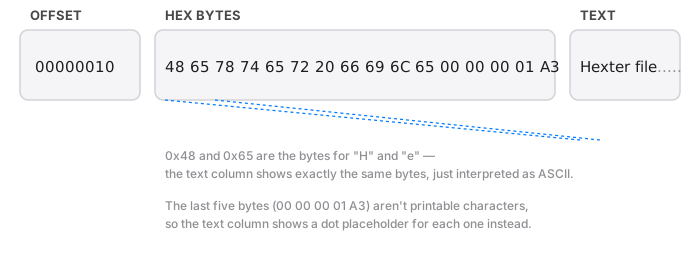
- Offset: how far into the file you are, usually shown in hex itself, so you can jump back to a specific position later.
- Hex bytes: the actual data, two characters per byte, grouped into rows (commonly 16 bytes per row).
- Text (ASCII) view: the same bytes reinterpreted as characters, for whatever portion of the file happens to be readable text. Non-text bytes usually show as a dot placeholder.
That third column is why file paths, labels, and version strings are often visible even in files that are mostly binary data: any embedded text shows up in that column even though the file as a whole isn’t a text file.
When you’d actually need one
Most people go their whole life without opening a hex editor, and that’s completely normal. The situations where it’s genuinely the right tool are specific:
- A file’s extension doesn’t match its actual contents. Someone renamed a
.zipto.doc, or you’re not sure a.dbfile is really a database. The first few bytes of most formats are a distinctive signature (PNG starts with89 50 4E 47, ZIP with50 4B), and a hex view confirms it in seconds. - A file is corrupted and you want to know how. Truncated download, bad transfer, a header that got overwritten. Seeing the raw bytes tells you whether the damage is at the start, the end, or scattered.
- You’re debugging something that reads or writes binary data, a save file format, a config file, a network protocol, and you need to confirm exactly what bytes are being produced.
- You want to verify a specific value, like confirming four bytes really do represent the file size you expect, or checking a timestamp, without trusting a black-box tool to interpret it correctly.
- Curiosity. Plenty of people open a hex editor once just to see what a familiar file format actually looks like underneath. That’s a completely legitimate reason.
If none of those describe what you’re doing, you probably don’t need one, and that’s fine. It’s a specialist tool for a specific kind of question.
What makes a hex editor good, not just functional
Once you do need one, the tools mostly do the same basic job: show bytes, let you scroll, let you search. The differences that matter are about safety and clarity, not raw feature count. Hex Fiend is the free, open-source option most Mac users end up with by default, and it’s genuinely capable, particularly with very large files. Hexter takes a narrower, more cautious approach: every file opens read-only, so looking at something unfamiliar carries zero risk, editing is an explicit, reversible step rather than the default state, and common file formats (PNG, ZIP, Mach-O, WAV, SQLite) get their structure parsed out automatically instead of leaving you to decode headers by hand.
Which one you want depends on what you’re doing. If you’re comparing two multi-gigabyte files byte for byte, Hex Fiend’s diffing is built for that scale. If you just need to confirm what a file actually is, check a handful of bytes, or make a small, careful edit without worrying about accidentally wrecking the original, that’s the situation Hexter is built for.