How to View a SQLite Database File on Mac
You found a .sqlite, .db, or .sqlite3 file somewhere on your Mac, in an app’s support folder, in a backup, in a project you’re debugging, and you want to know what’s actually in it. Double-clicking does nothing useful. Quick Look shows you a blank preview or garbled text. You need an actual SQLite file viewer, and it’s not obvious which tool to reach for.
Why you can’t just open it like a normal file
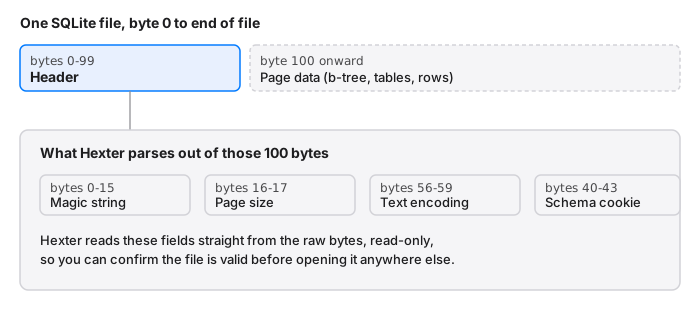
SQLite databases are binary files, not text. The first 100 bytes are a fixed header: a magic string that reads SQLite format 3, followed by fields like page size, text encoding, and a schema cookie that changes every time the table structure is altered. After that header comes the actual page data, organized as a b-tree, which is why a text editor renders it as noise.
Finder’s Quick Look doesn’t parse any of this. TextEdit interprets it as plain text and shows you mostly unreadable characters with a few recognizable strings mixed in (table names, column names, and any text data stored in the tables tend to survive because SQLite stores strings largely as-is). None of that tells you whether the file is actually valid, what page size it was created with, or why some other app is refusing to open it.
Your options for looking inside
The sqlite3 command line tool. macOS ships with sqlite3 in Terminal. Run sqlite3 yourfile.db ".schema" and you’ll get the table definitions, or .tables for a quick list. This works well if you already know it’s a valid database and you want to query it. It’s less useful if you’re not sure the file is valid in the first place, since a corrupted header just produces a cryptic error with no detail about what’s wrong.
DB Browser for SQLite. This is the right tool if your actual goal is browsing table rows, editing data, or running SQL queries. It’s free, well maintained, and built specifically for that job. If you need to explore the data inside the tables, stop reading this and go get DB Browser.
A hex editor with SQLite awareness. This is the option for a different question: not “what’s in the tables” but “what is this file, actually.” That’s the gap Hexter fills. Open the file and it reads read-only by default, so you’re not risking the file just by looking. The Analyze tab recognizes the SQLite header on sight and breaks out the fields, page size, encoding, schema cookie, alongside the raw hex, so you can confirm the file is really SQLite, check what page size it was built with, or spot a header that’s been truncated or overwritten before you ever hand it to something that expects a clean database.
When the raw-bytes view actually matters
A few situations where seeing the header directly, not just the query results, saves time:
- A file won’t open in your app, and you’re not sure it’s actually SQLite. Some apps write files with a
.dbextension that aren’t SQLite at all. Checking for theSQLite format 3magic string in the first 16 bytes answers that in seconds. - You’re debugging a sync or backup pipeline and suspect a file got truncated or corrupted in transit. A header that’s cut short, or a page size field that doesn’t match the file’s actual size, is a fast diagnostic.
- You want to confirm a database’s text encoding (UTF-8 vs UTF-16) before writing code that reads it, without spinning up a full database library just to ask one question.
- You’re reverse-engineering an app’s local storage and want to see exactly what’s on disk before deciding whether it’s worth writing a proper SQL query against it.
How to do it
- Open the
.sqliteor.dbfile in Hexter. It opens read-only, so there’s no risk of accidentally modifying a database you need intact. - Open the Inspector sidebar and switch to the Analyze tab.
- Hexter detects the SQLite header automatically and shows you the parsed fields next to the byte offsets they came from.
- If you need to look closer at a specific field, like the page size or the schema cookie, select those bytes in the hex grid and the Inspector shows you the numeric interpretation directly.
If what you actually need after that is to query the tables, that’s where you switch to sqlite3 or DB Browser. They’re the right tools for that job. Hexter is for the ten seconds before that, when you just need to know what you’re looking at.
Hexter is a native macOS hex editor built to make exactly this kind of file inspection safe by default: read-only until you explicitly enable editing, with built-in structure parsing for SQLite, PNG, ZIP, Mach-O, and WAV files.