Inside Binary File Formats: PNG, ZIP, and Mach-O Headers Explained
Every file format you use daily, image, archive, executable, has a structure defined down to the byte, and almost none of that structure is visible through the tools you normally use to open those files. Preview shows you a picture. Archive Utility shows you extracted files. Neither shows you the bytes that made those results possible. Here’s what three common formats actually look like underneath, and how to look at them yourself.
PNG: a sequence of labeled chunks
Every PNG file starts with the same eight bytes: 89 50 4E 47 0D 0A 1A 0A. That’s not image data, it’s a signature, deliberately chosen to include a byte that turns unusable if the file is accidentally transferred as text (0x0A and 0x0D are newline characters, so a broken text-mode transfer corrupts them in a way that’s easy to detect).
After the signature, everything in a PNG is a chunk, and every chunk follows the same four-part layout:
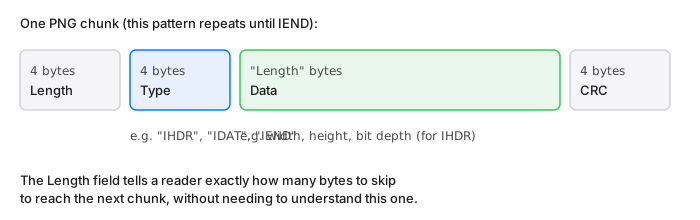
- Length (4 bytes): how many bytes of data follow, not counting the type or CRC.
- Type (4 bytes, always ASCII): a four-letter code like
IHDR(image header, always first),IDAT(compressed pixel data, there can be several), orIEND(marks the end of the file). - Data: whatever that chunk type specifies.
IHDR’s data is the width, height, bit depth, and color type, always the same fixed layout. - CRC (4 bytes): a checksum of the type and data, so a decoder can detect a corrupted chunk instead of silently misreading it.
That’s the entire format. A PNG decoder just walks chunk after chunk, reading the length to know how far to skip, until it hits IEND.
ZIP: local headers, then a directory at the end
A ZIP archive stores each file with its own local file header, marked by the signature 50 4B 03 04 (the PK at the start is a reference to Phil Katz, the format’s creator). That header includes the filename, the compression method, and both the compressed and uncompressed sizes, immediately followed by the file’s compressed data.
The part that trips people up: those per-file sizes and checksums in the local header are sometimes zero, with the real values stored later in a “data descriptor,” because ZIP was designed to support streaming writes where the final size isn’t known until the data has already been written. The definitive list of what’s actually in the archive lives in a central directory at the very end of the file, which is also why some corrupted or truncated ZIPs can look like they have content when you scan from the start, but fail to open, because the tool you’re using reads the central directory first and it’s missing or damaged.
Mach-O: magic number, then load commands
Mach-O is the executable format macOS uses for compiled binaries. It opens with a magic number that tells a loader two things at once: whether it’s 32-bit or 64-bit, and which byte order the rest of the file uses. 0xFEEDFACE is 32-bit, 0xFEEDFACF is 64-bit, and if you see the bytes reversed (0xCEFAEDFE or 0xCFFAEDFE), it means the file was written in the opposite byte order from the machine reading it.
After the magic number comes a fixed header (CPU type, file type, and a count of load commands), followed by that many load commands in sequence. Load commands are how a Mach-O file describes everything the loader needs: which segments to map into memory, which dynamic libraries to link, where the entry point is. It’s a similar idea to PNG’s chunks: a fixed header, then a sequence of self-describing records, each one telling the reader how much to skip to get to the next.
Looking at this yourself
None of this requires writing a parser. Open any PNG, ZIP, or Mach-O file in Hexter and the Analyze tab recognizes the format automatically, walking the actual chunk or load-command structure and showing it as a tree next to the raw hex, so you can click a field and see exactly which bytes it came from. It’s read-only by default, so this is genuinely safe to do on a real file, an app binary, a screenshot, an archive you downloaded, without any risk of altering it.
If you want to verify what’s above by hand instead: open a PNG and check that the first eight bytes match the signature, then look at bytes 8 through 11 (the length of the first chunk) and bytes 12 through 15 (its type, which should read IHDR). It’s a small enough exercise to do in a couple of minutes, and it’s a genuinely useful way to understand a file format you’ve used your whole life but never actually looked at.